

Most people discover they don’t have real backups after they need them.
A migration fails. A laptop dies mid-upgrade. A ransomware attack encrypts a server. Someone says, “Don’t worry — everything is backed up.”
Then the uncomfortable discovery happens.
The backup hasn’t run in months.
The restore process fails.
Critical data was never included.
Or worse — the only “backup” is a synced cloud folder that was encrypted by ransomware at the same time as the original files.
A reliable backup strategy is not simply copying files somewhere else. It is a verifiable recovery system designed to survive hardware failure, operator error, software migration mistakes, and deliberate cyberattacks.
This distinction becomes especially important during infrastructure changes like operating system upgrades or migration from Microsoft Windows to Linux environments.
Without a tested backup system, migrations become irreversible experiments.
With one, they become controlled engineering projects with a rollback plan.
This article explains the backup mechanics many organizations overlook — from the 3-2-1 backup rule to restore verification, browser profile protection, and disk imaging as a safety net during migrations.
Because the real value of a backup is not that it exists.
It’s that you can restore from it when something goes wrong.
The 3-2-1 Backup Rule: The Foundation of Any Reliable Backup Strategy
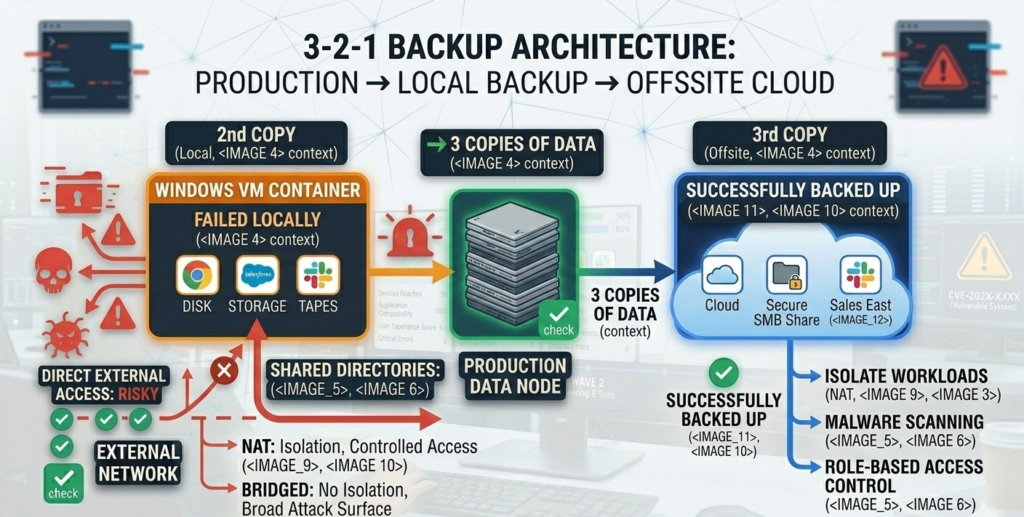
Ask ten organizations if they have backups and most will say yes.
Ask if they follow the 3-2-1 backup rule, and the number drops dramatically.
The 3-2-1 model is widely recommended across disaster recovery guidance and practitioner experience because it addresses the most common causes of data loss.
The 3-2-1 Rule Explained
A proper backup strategy includes:
3 copies of data
- The primary production data
- One local backup
- One offsite backup
2 different storage types
- Example: NAS + cloud storage
- Example: local disk + object storage
1 offsite or offline copy
- Cloud storage outside the network
- Immutable backup storage
- Offline cold storage
This architecture protects against:
- Hardware failure
- Accidental deletion
- ransomware encryption
- site disasters
Why Cloud Sync Alone Is Not a Backup
Many businesses rely on platforms like Google Drive, Dropbox, or Microsoft OneDrive.
These are excellent file synchronization tools, but they are not complete backup systems.
If ransomware encrypts local files, those encrypted files may sync immediately to the cloud.
The result: the “backup” becomes encrypted too.
True backup systems provide:
- version history
- immutable storage
- independent recovery workflows
Operational takeaway:
A backup strategy must protect against both failure and compromise — not just storage loss.
Restore Testing: The Step Most Backup Plans Skip
The most dangerous phrase in IT is:
“The backup should work.”
Backups that have never been restored are assumptions, not protection.
Restore testing is the process of verifying that backups are:
- Complete
- Accessible
- Recoverable within acceptable time
Industry consensus among disaster recovery practitioners emphasizes that backup verification must be routine, not occasional.
What Restore Testing Actually Looks Like
A real restore test involves:
- selecting a recent backup snapshot
- restoring files to a test environment
- verifying application functionality
- confirming data integrity
This should be done periodically, especially before major infrastructure changes.
Restore Testing Before Migrations
Migration projects introduce risk because they modify:
- operating systems
- drivers
- file systems
- application dependencies
Before any OS migration, teams should verify they can restore:
- full system images
- application databases
- user profiles
Restore verification is non-negotiable.
If backups fail during testing, they would fail during a real disaster.
Operational takeaway:
A backup strategy is only real once it has been successfully restored.
The Hidden Data Most Backups Miss: Browser Profiles, Vaults, and App Configurations
When migrations fail, the most frustrating losses often aren’t large files.
They’re tiny pieces of configuration data scattered across applications.
Common examples include:
- browser bookmarks
- password vault extensions
- saved authentication sessions
- custom application settings
- development environments
- SSH keys
- local databases
These items rarely live in obvious folders.
They are typically stored in hidden directories inside user profiles.
For example:
- **Google Chrome profiles store bookmarks, extensions, cookies, and settings
- password managers may store encrypted vault caches locally
- development tools may store tokens or API keys in configuration directories
When systems are wiped or migrated, these files can disappear.
And recreating them can take days or weeks of reconfiguration.
Why This Matters During Linux Migration
Moving from **Microsoft Windows to Linux often involves rebuilding user environments.
If browser profiles or configuration directories are missing, users lose:
- bookmarks
- login sessions
- saved workflows
That friction slows adoption and creates the perception that the migration “broke things.”
Operational takeaway:
Backups must include full user profile data — not just documents.
System Imaging: The Rollback Plan Most Migration Guides Ignore

File backups protect individual data.
System images protect the entire operating environment.
A disk image captures:
- operating system
- installed applications
- configuration settings
- boot environment
- drivers
If a migration fails, the system can be restored to the exact previous state.
This is particularly useful when upgrading from **Microsoft Windows 10 to Microsoft Windows 11 or testing Linux deployments.
Imaging vs File Backup
| Capability | File Backup | Disk Image |
|---|---|---|
| Restore individual files | Yes | Yes |
| Restore full system state | No | Yes |
| Fast rollback after failed migration | Limited | Yes |
| Protect application configurations | Partial | Complete |
Disk images function as a migration safety net.
If the new environment fails validation, IT teams can restore the system quickly.
When Imaging Is Most Valuable
System images are especially useful when:
- migrating operating systems
- replacing hardware
- testing Linux deployments
- upgrading large numbers of endpoints
Operational takeaway:
Imaging turns risky migrations into reversible experiments.
The Backup Validation Checklist (Use Before Any Migration)
Before any infrastructure change, a structured verification process should confirm backup readiness.
Use this framework to validate protection coverage.
Backup Coverage
- All production servers included
- Endpoint devices included
- Cloud SaaS data protected
- User profiles captured
- Application databases backed up
Storage Architecture
- One local backup repository
- One offsite backup location
- Backup storage isolated from production network
Restore Verification
- File restore tested successfully
- Full system restore validated
- Backup retention policy confirmed
Security Protections
- Immutable storage enabled
- Backup credentials secured
- Backup systems isolated from domain compromise
Migration Rollback Readiness
- Disk images captured
- Restore media prepared
- Recovery instructions documented
Practical takeaway:
If restore testing has not been performed, backups should be considered unverified.
A Practical Backup Plan Template for Individuals and SMBs

Most organizations do not need complex enterprise backup architectures.
They need consistent, verified protection across endpoints and servers.
A simple framework works well for individuals and small businesses.
Endpoint Protection
Each workstation should have:
- automated file backup to local NAS or backup appliance
- encrypted cloud backup for offsite redundancy
- periodic disk image snapshots
Server Protection
Servers should include:
- daily incremental backups
- weekly full backups
- offsite replication or object storage
Restore Testing Schedule
- quarterly file restore tests
- annual full system recovery tests
- validation before major infrastructure upgrades
Migration Protection
Before migrations:
- capture full disk image
- export browser profiles
- archive configuration directories
Migration projects handled by managed providers — including firms like Carefree Computing — often include rollback planning as a standard part of the process rather than treating backups as an afterthought.
Operational takeaway:
Backup planning should be integrated into every migration project from the beginning.
Frequently Asked Questions
What is the 3-2-1 backup rule?
The 3-2-1 backup rule means maintaining three copies of data: the original plus two backups. These backups should be stored on at least two different types of storage media, with one copy stored offsite or offline. This structure protects against hardware failure, accidental deletion, ransomware, and physical disasters.
Why is restore testing important for backups?
Restore testing verifies that backups can actually be recovered. Without testing, organizations may discover during a crisis that backups are incomplete, corrupted, or misconfigured. Regular restore testing confirms that files, applications, and full systems can be successfully recovered within acceptable time limits.
Are cloud storage services considered backups?
Cloud storage platforms like Google Drive or Microsoft OneDrive primarily provide synchronization rather than true backups. If files are deleted or encrypted locally, those changes may sync to the cloud. True backup systems include version history, independent storage, and controlled restore processes.
What is a system image backup?
A system image backup captures the entire operating system, installed applications, configuration settings, and boot environment of a device. This allows organizations to restore the full system state after hardware failure, ransomware attacks, or failed operating system migrations.
What data is most commonly missed in backups?
Browser profiles, password manager caches, application configuration directories, and developer environment settings are often excluded from basic backups. These files may contain bookmarks, authentication tokens, and configuration data that are difficult to recreate after a system rebuild.
Conclusion
Data protection is often misunderstood because the word backup sounds simple.
Copy files somewhere. Store them safely. Problem solved.
Real-world incidents prove otherwise.
Backups fail because they were never tested.
Critical data disappears because it was never included.
Ransomware succeeds because the backup system was accessible to attackers.
The difference between inconvenience and catastrophe usually comes down to a single factor: whether recovery was verified before disaster struck.
A thoughtful backup strategy treats restore testing, system imaging, and migration rollback as part of the same discipline.
When organizations build that discipline into their infrastructure processes, migrations stop being risky.
They become controlled changes with a safety net.
And that safety net is what prevents the kind of regret that only appears when recovery is no longer an option.