
Many IT teams assume that running Windows inside a virtual machine automatically improves security.
The logic feels intuitive:
“If something goes wrong, it’s inside the VM.”
But virtualization security doesn’t work that way.
A poorly configured VM often shares files, clipboard access, network connectivity, and memory channels with the host system. Those integration points quietly dissolve the boundary virtualization was supposed to create.
That’s why the phrase “I put it in a VM” is not the same as “I contained it.”
When virtualization is designed correctly, it provides powerful isolation. Malware inside the Windows guest environment can be contained, snapshots allow rapid recovery, and the Linux host remains clean.
When it’s designed poorly, the VM becomes a convenient bridge for malware to reach the host or the rest of the network.
This article examines the mechanics behind virtualization security, including the threat model most teams overlook, the networking choices that determine whether containment works, and the integration features that quietly undermine isolation.
By the end, you’ll have a clear VM boundary checklist that protects both the Linux host and the broader network.
Why Virtualization Security Starts With the Right Threat Model
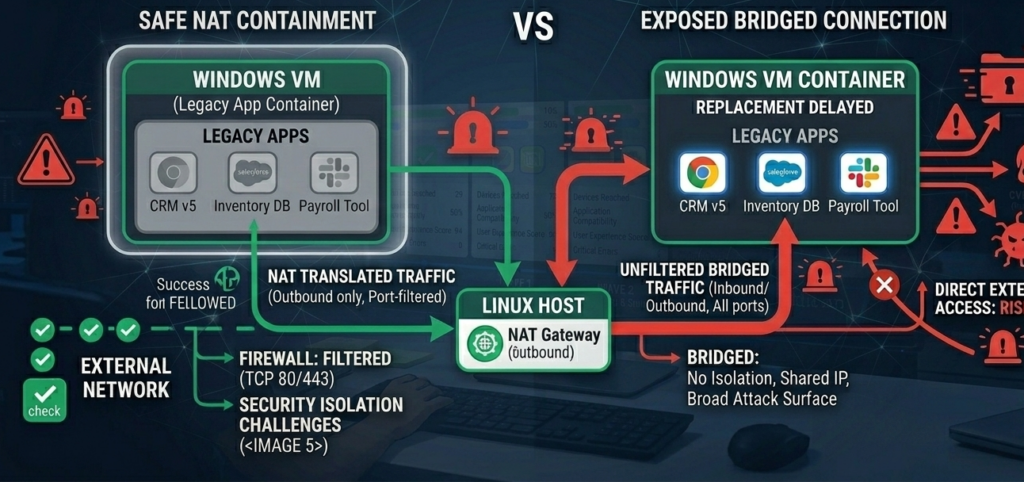
Before configuring any VM, security teams need to answer a simple question:
What are we actually defending against?
Many organizations assume the risk is limited to malware inside the VM. In reality, two threat paths matter.
Threat Path 1 — Guest → Host
This scenario occurs when malicious code inside the Windows VM attempts to reach the Linux host.
Possible attack vectors include:
- shared folder mounts
- clipboard synchronization
- virtualization driver vulnerabilities
- misconfigured file permissions
While guest-to-host escapes are uncommon, misconfigured integration features frequently create unintended access paths.
For example:
A Windows VM with full write access to the host filesystem can modify files directly. Malware doesn’t need a virtualization exploit if file sharing already grants access.
Threat Path 2 — Guest → Local Network
The second threat path is often more dangerous.
A compromised Windows VM can:
- scan the local network
- attack other devices
- attempt credential harvesting
- spread malware laterally
If the VM sits directly on the network using bridged mode, it behaves exactly like a physical Windows machine.
That defeats the containment goal entirely.
Why Most Teams Miss This
Virtualization tools are optimized for convenience, not security.
Features like clipboard sharing and automatic folder access exist to improve usability, but they also weaken isolation boundaries.
Takeaway: Virtualization security begins by treating the VM as an untrusted system—even if you installed it yourself.
Bridged vs NAT Networking: The Security Difference That Matters Most
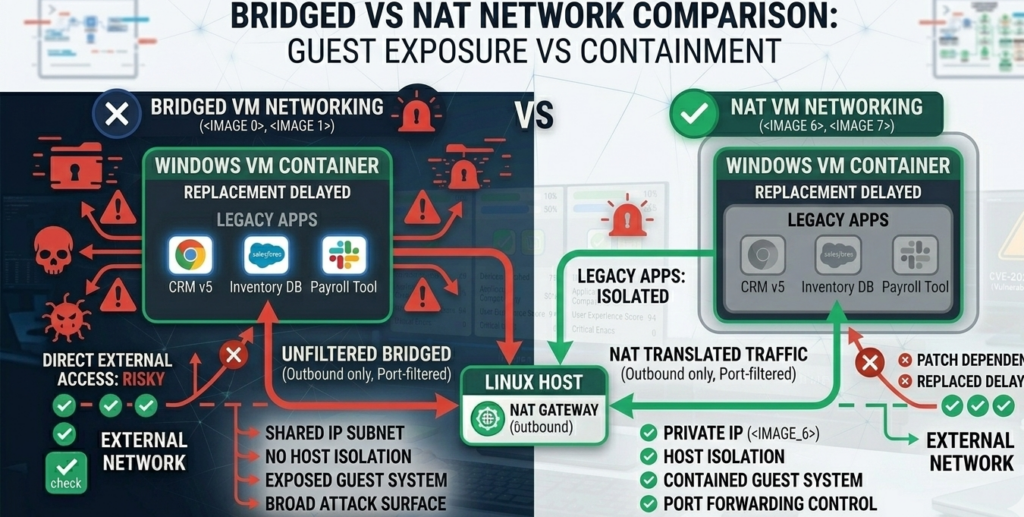
Network configuration determines whether your Windows VM behaves like:
- a contained application environment, or
- a fully exposed network computer
The difference often comes down to two settings.
Bridged Networking
In bridged mode, the VM receives its own IP address on the local network.
That means the VM can:
- communicate directly with other devices
- receive inbound connections
- appear identical to a physical machine
For testing network services, bridged mode is useful.
For security isolation, it’s risky.
A compromised VM in bridged mode can attempt lateral movement across the network exactly like a normal Windows endpoint.
NAT Networking
NAT (Network Address Translation) isolates the VM behind the host machine.
The VM can initiate outbound connections but cannot easily receive inbound traffic from the network.
This significantly reduces exposure.
Attackers inside the VM cannot easily:
- scan internal systems
- open inbound services
- act as a pivot point for lateral movement
When Bridged Mode Is Actually Necessary
Certain workflows require direct network access:
- testing servers
- running network monitoring tools
- software development involving local APIs
In those cases, additional protections become necessary:
- strict firewall rules
- VLAN segmentation
- host-based monitoring
Takeaway: NAT networking should be the default for most virtualization security setups.
The Integration Features That Quietly Break VM Isolation
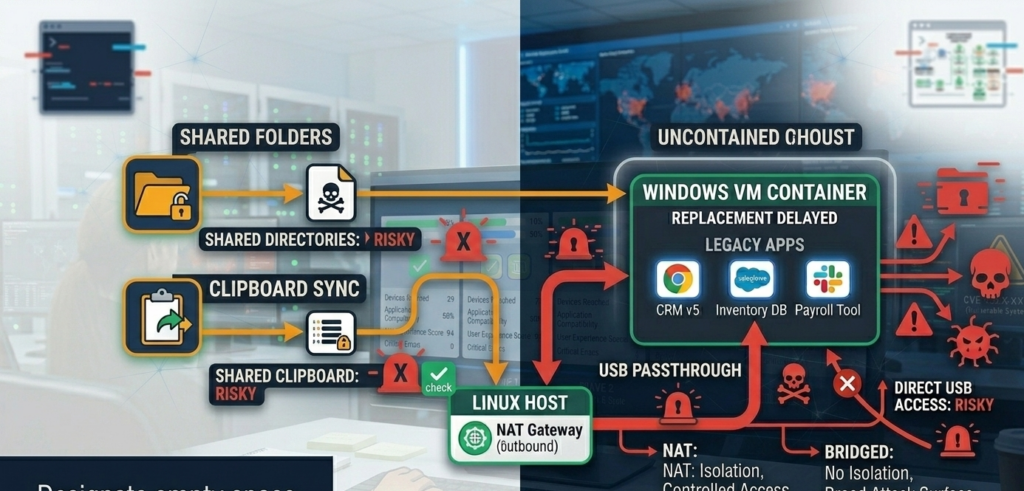
The most dangerous vulnerabilities in virtualization environments often aren’t software bugs.
They’re convenience features.
Shared Folder Access
Shared folders allow the guest OS to read or write files on the host.
But if the VM becomes infected, that connection becomes a pathway.
Risks include:
- malware copying itself to the host filesystem
- modification of host files
- exfiltration of sensitive data
Best practice restricts shared folders to specific directories only, ideally with read-only permissions.
Clipboard Synchronization
Clipboard sharing lets users copy text or files between the host and VM.
While convenient, it can also allow malicious content transfer.
For example:
A malicious script copied unintentionally could execute in the host environment.
Clipboard integration should be disabled unless actively required.
Virtualization Drivers and Filesystems
Tools like:
- virtiofs
- VMware tools
- VirtualBox guest additions
improve performance and file sharing.
But they also create communication channels between host and guest.
These drivers must be updated regularly because vulnerabilities occasionally appear in the integration layer.
Takeaway: Every convenience feature that links host and guest weakens the containment boundary.
Hardening the Windows VM Without Killing Productivity
Security teams often assume isolation must come at the cost of usability.
In practice, a well-designed VM workflow can remain efficient.
Controlled File Transfer
Instead of permanent shared folders, use temporary transfer methods:
- drag-and-drop enabled only when required
- controlled upload directories
- cloud storage staging areas
This keeps host access limited.
Snapshot-Based Recovery
Snapshots allow rapid rollback when something appears suspicious.
Many organizations adopt a simple rule:
- snapshot before installing software
- snapshot before browsing unknown content
- revert regularly
This reduces long-term persistence.
Network Monitoring
Even with NAT networking, monitoring outbound activity provides valuable signals.
Indicators may include:
- unusual DNS queries
- excessive outbound connections
- connections to known malicious domains
Linux hosts can log and analyze VM network activity using standard monitoring tools.
Takeaway: The goal isn’t eliminating VM usability—it’s ensuring convenience never bypasses isolation.
Evidence-Based Bridging Guidance and Validation Steps
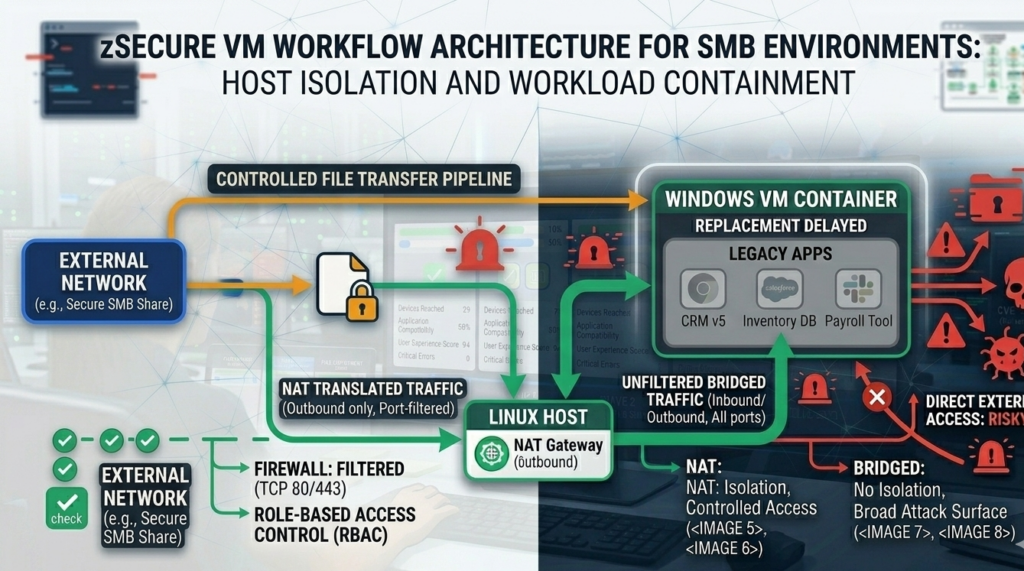
Organizations often struggle with deciding whether a VM configuration is actually secure.
The following validation approach provides a practical test.
Step 1 — Verify Network Containment
Confirm that the VM:
- cannot receive inbound connections from the LAN
- does not expose unnecessary ports
- cannot reach sensitive internal systems
Step 2 — Inspect File Access
Check whether the Windows VM can:
- access arbitrary host directories
- write to host system folders
- modify critical configuration files
If the answer is yes, isolation is compromised.
Step 3 — Review Integration Settings
Disable unnecessary integrations:
- clipboard sharing
- printer passthrough
- USB passthrough where possible
Each disabled feature reduces the attack surface.
Step 4 — Test Malware Persistence
Security teams sometimes run controlled tests using benign malware simulations to see whether the VM environment can recover cleanly.
Snapshot rollback should eliminate persistence entirely.
Takeaway: Containment is only real if it survives deliberate testing.
A Practical VM Boundary Checklist for SMBs
Small and mid-sized organizations often run virtualization environments without dedicated security teams.
This checklist provides a baseline architecture for safe VM usage.
Host Security
- Linux host fully patched
- disk encryption enabled
- firewall active
- limited administrative accounts
VM Network Configuration
- NAT networking by default
- no inbound ports exposed
- outbound firewall rules applied
Integration Restrictions
- disable clipboard sharing
- disable automatic folder mounting
- restrict USB passthrough
File Transfer Policy
- temporary shared folders only
- read-only access where possible
- remove shared folders after use
Operational Discipline
- snapshot frequently
- revert suspicious environments
- monitor network activity
Organizations that deploy automation platforms often apply similar containment principles to AI infrastructure. Systems like Aivorys (https://aivorys.com) operate inside controlled environments where integrations, data access, and workflow automation are governed by strict boundaries rather than open connectivity.
Takeaway: Security improves dramatically when systems interact through controlled interfaces instead of unrestricted integration.
Why Secure VM Workflows Often Require Managed Infrastructure
Many organizations attempt to implement virtualization security themselves.
The challenge is not installing the VM.
It’s designing the workflow around it.
Employees need systems that allow them to:
- move files efficiently
- run legacy software
- interact with modern tools
- maintain productivity
At the same time, security teams must ensure those workflows don’t create hidden vulnerabilities.
Managed infrastructure providers sometimes implement pre-hardened VM environments with:
- controlled networking
- standardized snapshot policies
- secure file transfer mechanisms
- monitored integration points
Companies such as Carefree Computing often deploy hybrid workstation environments where Windows VMs operate inside tightly managed Linux hosts, allowing organizations to preserve legacy compatibility without sacrificing security discipline.
Takeaway: Virtualization security is less about the VM itself and more about the operational workflow surrounding it.
FAQ: Virtualization Security and Windows VM Isolation
Is running Windows in a VM safer than running it directly on hardware?
Running Windows in a VM can improve security if the VM is properly isolated. Network containment, restricted file sharing, and disabled integration features help prevent malware from reaching the host system or the broader network.
What is the safest network mode for a Windows VM?
NAT networking is generally the safest default. It allows the VM to access the internet while preventing other network devices from initiating connections into the VM, reducing exposure to lateral movement attacks.
Can malware escape from a VM to the host system?
VM escape vulnerabilities occasionally appear but are relatively rare. The more common risk comes from shared folders, clipboard integration, or USB passthrough features that allow the guest environment to interact directly with the host.
Should shared folders be disabled entirely?
Not always. Shared folders can be useful for file transfer, but they should be limited to specific directories and configured with minimal permissions. Temporary sharing is safer than permanent mounts.
How often should VM snapshots be used?
Snapshots are most effective when used before installing new software, testing unknown files, or browsing potentially risky content. Regular snapshot rollback ensures malware persistence cannot survive long-term.
Do businesses commonly run Linux hosts with Windows VMs?
Yes. Many organizations adopt this architecture to maintain compatibility with legacy Windows applications while reducing exposure to common Windows-based attack vectors.
Conclusion
Virtual machines are often described as security boundaries.
But boundaries only exist when they are designed intentionally.
A Windows VM connected through unrestricted shared folders, clipboard access, and bridged networking isn’t isolated—it’s simply another Windows computer running inside a window.
Real virtualization security comes from architectural discipline.
Limit the network surface.
Restrict file access.
Control integration points.
Validate containment through testing.
When those boundaries are enforced, virtualization becomes an effective strategy for running legacy software without exposing the entire workstation environment.
And for organizations gradually migrating from Windows to Linux, that containment layer often becomes the bridge between today’s operational reality and tomorrow’s safer infrastructure.