
Can you keep your daily workflow in one place while still firing up the few Windows-only apps you need?
Dual boot makes that practical: you pick your main environment at startup with GRUB, and save the other for tasks that truly require it.
This setup lets you make a Linux system your daily workspace while holding a fallback for device tools, legacy software, or specialized utilities tied to another operating system.
It reduces migration friction because you keep a familiar option ready. You get control over where each task runs on your computer instead of forcing a full switch.
In this article you’ll see real steps: planning, distro selection, installation, boot management, and routines that keep both systems productive.
Key Takeaways
- You can run many Windows apps without living full time in that system.
- Dual boot with GRUB makes switching simple at startup.
- Keep the familiar OS for device drivers and niche software.
- Plan installation and task placement for daily productivity.
- This approach lowers risk while you build confidence in a new setup.
Why you’d use Linux and Windows side by side for daily work
Treat your machine as two purpose-built environments: a daily driver for routine work and a reserve for niche apps.
Keep one OS as your day-to-day workspace
Pick a primary operating system for browsing, email, writing, and development. This keeps most tasks fast and simple.
Give each system a clear job
Assign the second OS to specific applications like legacy Adobe versions or vendor utilities. That prevents an “abandoned OS” from wasting SSD space.
Set realistic expectations for application compatibility
Some applications run well through compatibility layers such as Wine or Bottles. Zorin OS can help by offering a familiar interface and preconfigured tools.
“A purpose-first dual boot keeps both environments useful and prevents one from becoming a forgotten partition.”
- You decide your daily driver and keep Windows for the exceptions.
- Reboot only when a native app requires it.
- Plan which applications must remain on the native platform.
| Role | Typical tasks | When to reboot |
|---|---|---|
| Primary OS | Browsing, mail, dev, writing | Rarely |
| Secondary OS | Legacy apps, vendor tools | For specific tools |
| Compatibility layer | Small Windows apps via Wine/Bottles | Usually not |
This approach to dual booting is a practical way to control your workflow. It reduces clutter and keeps both systems relevant to your day-to-day way of working.
Pick your best setup option before you touch your drive
Pause now and map your needs. Decide which configuration will give you native access to the apps and devices you depend on. This step prevents surprises later.
Why choose dual boot? Dual boot delivers full compatibility for demanding software and vendor drivers. You run Windows natively when you must, and keep the other operating system as your daily workspace.
- Compare each main setup and confirm dual boot is the best option when hardware or Windows-only software requires it.
- Expect native performance on both systems and fewer compatibility surprises.
- Adopt a “primary OS” mindset now: pick a default (usually Linux) and one “on call” for the computer’s special tasks.
- List non-negotiables—anti-cheat, corporate VPN clients, or proprietary device tools—and write a short list of “must boot Windows for this” tasks.
What you need before installation and partition changes
Protect your files first, then inventory drives and free space before making partition changes. A full backup of your drive is the safest first move. Resizing partitions and modifying a boot device always carries risk, even when you follow careful steps.
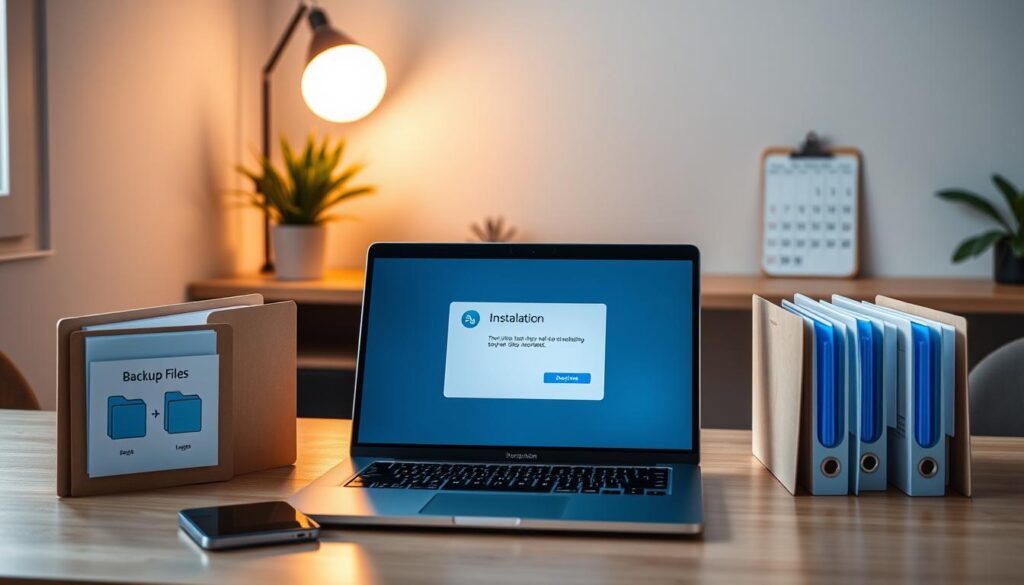
Back up your files before you resize partitions or modify a boot drive
Make at least one complete copy of your important data to an external drive or cloud. Verify the backup so you can restore quickly if something goes wrong.
Confirm your computer supports UEFI and plan for Secure Boot scenarios
Check whether your computer boots with UEFI. Modern installs usually require GPT. Note Secure Boot settings now so the installer does not stop mid-process.
Choose your storage target and ensure you have enough space for both operating systems
Inventory which drive holds Windows, how much free space exists, and whether you will add the second OS to the same drive or a separate one. Plan partitions with real workloads in mind—leave extra room for updates, apps, and personal data.
- Decide if you will share a data partition or access existing files from both systems.
- Estimate required space for creative tools or game libraries—these need far more than a minimal install.
- Save a short checklist of steps to follow at install time so you stay organized.
Create a bootable Linux install USB with Rufus on a UEFI system
Make a UEFI-ready USB installer to bring a fresh distro onto your PC safely. This prepares a clean installer that matches modern firmware and avoids common booting issues.
Get the ISO and pick the correct device in Rufus
Download your chosen ISO and open Rufus. Plug an 8GB (or larger) USB stick and confirm the device selector. Double-check this step to avoid overwriting the wrong drive.
Choose GPT for UEFI installs
Select the GPT partition scheme because it is the modern standard for UEFI installations. This option reduces compatibility problems during the first boot.
Start the write and choose “Write in ISO image mode”
Click START in Rufus. When prompted, pick “Write in ISO image mode”. Read every confirmation prompt and verify the target USB again before you proceed.
| Action | Why it matters | Tip |
|---|---|---|
| Download ISO | Ensures you have the correct installer | Verify checksum |
| Select USB device | Prevents data loss on other drives | Unplug extra drives |
| Choose GPT | Matches UEFI firmware | Avoid MBR for modern PCs |
| Write in ISO image mode | Compatible with most distros | Confirm prompts before proceeding |
Finish: safely eject the USB. Then use your firmware boot menu to test the installer. These simple steps keep your installation smooth and your data safe.
Install Linux alongside Windows without wiping your system
Prepare to add a second operating environment safely. Boot from the USB and pick the GRUB “Try or Install” entry so you stay on a guided path. This prevents accidental drive changes and gives you a chance to confirm hardware before any on-disk work.
Test hardware in a Live session
Choose “Try” to run a live session. Check Wi‑Fi, audio output, and Bluetooth while everything still runs from the USB. If a device fails, you can try proprietary drivers or pick a different distro before committing to installation.
Pick an interactive installer and app set
Select the Interactive Installation option. Decide Default for a lean start or Extended for more bundled apps. This choice affects initial software and how much space you allocate to each system.
Enable proprietary drivers when needed
Enable vendor drivers if your graphics or Wi‑Fi chipset needs extra support. That improves stability and avoids surprise hardware failures after the install.
Choose “Install alongside Windows Boot Manager”
When the installer offers the option, pick “Install alongside Windows Boot Manager.” Use the disk space slider to set partition sizes that match your workflow—more room for development repos on one side or large vendor tools on the other.
Finalize and confirm
Fill in user name, hostname, and location. Review the final summary carefully; this is your last chance to catch a wrong partition or drive choice. Start the installation, then restart when it finishes.
Remove the USB when prompted. Finally, test the boot menu to confirm you can load both operating systems from GRUB so the dual boot is stable on your computer.
Set up BIOS and GRUB so you can reliably choose an operating system
Finish the essential firmware step before you call the install complete. Change the boot order in BIOS/UEFI so the distro entry loads first. This simple setup makes the GRUB menu appear instead of the machine jumping straight to another OS.
Change boot order so your Linux install loads the boot menu first
Enter firmware settings on startup and move the GRUB or distro entry to the top of the list. That ensures the boot menu shows every time, giving you a clear choice at each start.
Use GRUB to boot into Linux by default while keeping Windows available
Configure GRUB so your primary OS starts after a short timeout. Keep the Windows entry in the menu for when you must boot that platform. Test selecting Windows to confirm clean booting.
Verify both systems boot cleanly after changes
Reboot several times on purpose to validate the booting flow. Note the boot option name and drive label you changed. Document these details so you can restore the right path if the firmware resets later.
Choosing a Linux distro that complements Windows instead of duplicating it
Choose a distro that gives you strengths Windows lacks, so each of your operating systems earns its place.
Zorin OS: ease the transition
Zorin OS targets newcomers with a familiar desktop layout. It can include Wine and Bottles preconfigured to help run some legacy software on your computer. This lowers the learning curve and keeps routine tasks fast.
Fedora Workstation: developer-focused
Fedora suits developers. It has strong open-source repos and a six-month cadence. You get modern tools and Red Hat‑aligned packaging that fit a development workflow without extra setup.
Garuda: customize confidently
Choose Garuda when you want deep customization. It often ships with KDE Plasma and Btrfs + Snapper snapshots for safe rollbacks after updates. That safety net makes exploration less risky.
| Distro | Focus | Best for | Recovery |
|---|---|---|---|
| Zorin OS | Familiar UI | Users migrating from Windows | Noisy, simple restore |
| Fedora Workstation | Development | Dev tools, modern stacks | Standard backups |
| Garuda | Customization | Power users who tweak | Snapshot rollbacks |
Pick by purpose. In each case tie the choice back to your daily plan so the two systems stay complementary in practice.
Using linux and windows together for Windows apps, files, and daily tasks
Keep your day-to-day work in one environment and boot the other only when a specific app calls for it.
Decide which applications must stay on Windows and which can live on Linux.
Map apps to the right side
Create a simple app map that lists the programs you must run on windows and the ones you can run on your main desktop. Mark true blockers—anti‑cheat, vendor tools, or legacy suites—so decisions are fast when you must reboot.
Plan file access across systems
Decide where your files live. Pick a shared data partition or a clear split so you always know where to save projects. Keep sensitive work on the native drive when required, and allow read access to common folders from both sides to avoid duplicates.
Create a “reboot only when needed” routine
Make Linux your default operating system for daily tasks. Batch Windows-only jobs and schedule updates so you reduce context switching. Keep consistent names for folders and backups so you never hunt for the right copy.
| Strategy | Pros | Cons |
|---|---|---|
| Shared data partition | Easy cross access, single source | Requires NTFS drivers on the main desktop |
| Separate drives | Better security, no accidental edits | More switching to move files |
| Cloud sync | Cross-system sync and versioning | Depends on internet and service limits |
Common pitfalls in dual booting and how to avoid them
Treat installation like surgery: confirm the target, follow a checklist, and stay prepared to revert.
Pick the right drive before you click Install. Verify disk names, sizes, and existing partitions so you do not overwrite the wrong one. If you have multiple drives or external storage attached to your computer, unplug extras and re-check the installer view.
Plan space realistically. Give Windows room for big updates and growth, and give your other system enough space for packages, caches, and projects. Running out of space breaks workflows fast, so err on the generous side when you set partition sizes.
Boot menu confusion often appears after updates. The simplest fix is to set the BIOS boot order so GRUB loads first. Keep your USB installer and the firmware boot selector handy as recovery tools if the computer temporarily boots the wrong entry.
- Verify the target drive every time before writing the installer or creating partitions.
- Treat disk selection as a repeatable checklist step when hardware changes.
- Troubleshoot methodically: confirm boot entries, confirm partition layout, then test one change at a time.
Conclusion
Let your everyday environment handle routine tasks, and boot the other system only when specific software needs it. This keeps your primary operating system fast while Windows remains on call for native tools you must run.
Back up before any partition change. Verify target drives before you write an installer. This safety rule protects files and prevents costly mistakes on your computer.
Adopt a purpose-first mindset so neither of your operating systems becomes wasted space. Document where files live, which apps stay native, and a short checklist for recovery.
Finish with a stable checklist: GRUB set to load first, both systems booting cleanly, and app decisions noted. Keep light maintenance—routine updates and occasional checks—so the setup stays reliable for daily work.
FAQ
How can you run Windows apps daily without living inside Windows?
You keep your preferred non-Windows OS as the daily driver and reserve Windows for apps that need native support. Use dual boot, a virtual machine (like VirtualBox or VMware), or compatibility layers such as Wine and Proton for select titles. Plan which apps must run in a true Windows environment and which can move to alternatives on your primary system.
Why use Linux and Windows side by side for daily work?
You get the stability and customization of a Unix-like system while keeping access to Windows-only software. Assign clear roles: one system for general work, the other for niche apps, games, or proprietary drivers. This prevents either OS from becoming neglected and reduces security or compatibility surprises.
How do you decide whether to dual boot or use a VM?
Choose dual boot when you need full hardware access, maximum performance, or direct GPU usage for certain applications. Choose a virtual machine when convenience, snapshots, and quick context switching matter more than raw performance. Assess hardware, disk space, and the apps’ requirements before you modify partitions.
What should you do before resizing partitions or changing boot drives?
Back up all important files to an external drive or cloud service. Verify current backups by restoring a sample file. Also note your boot mode (UEFI or legacy) and collect recovery tools such as a Windows recovery USB and a live USB for your chosen distro.
How do you prepare a UEFI system USB installer with Rufus?
Download the ISO for the distro you want and run Rufus on a Windows machine. Select the correct USB device, pick GPT partition scheme for UEFI, and choose “Write in ISO image mode.” Double-check the target drive to avoid overwriting a different disk.
What steps ensure you install alongside Windows without wiping the system?
Boot the installer from the USB and choose the “Try or Install” option to test hardware first. Use the installer’s “Install alongside Windows Boot Manager” option when available, enable proprietary drivers if needed for hardware, adjust the disk slider to allocate space, and complete user and location setup. Reboot, remove the USB, and confirm both OS entries in the boot menu.
How do you set BIOS/UEFI and GRUB so you can pick an OS reliably?
Enter firmware settings and set the drive with GRUB as the first boot option so the boot menu appears. Configure GRUB to default to your daily OS while keeping a visible entry for Windows Boot Manager. After firmware or OS updates, verify both boot entries work and repair GRUB if Windows overwrites it.
Which distros work well alongside Windows based on different needs?
Choose Zorin OS for a familiar, Windows-like interface if you want a gentle transition. Pick Fedora Workstation for development-focused workflows and the latest software. Consider a distribution such as Garuda Linux if you want deep customization and snapshot-based rollback for recovery.
How should you plan file access so documents are available to both systems?
Create a shared data partition formatted as NTFS for cross-OS compatibility, or use a cloud sync folder for critical projects. Mount the shared partition in your non-Windows OS at a consistent path and avoid hibernation from either side to prevent file corruption.
What routine helps minimize reboots while preserving productivity?
Group tasks by OS: do everything that needs Windows in one session, then switch back to your primary OS for daily work. Use VMs for quick checks, and keep a “reboot only when needed” policy for hardware upgrades or driver installs to avoid interrupting flow.
What are common installation pitfalls and how do you avoid them?
The main mistakes are selecting the wrong disk or partition and under-allocating space. Prevent these by labeling drives, unplugging unrelated disks during install, double-checking the installer’s target, and leaving headroom for updates and apps. Also, realize updates can change boot behavior—set boot order to fix most issues.
How do you handle Secure Boot and driver support during setup?
Confirm Secure Boot status before installing. Pick a distro with Secure Boot support or disable it briefly if you must, then enable it again once signed drivers are in place. Enable proprietary drivers during or after install when hardware needs them, such as for NVIDIA GPUs or some Wi‑Fi chips.
What tools help recover or repair a broken boot menu?
Use a live USB for your distro to chroot and reinstall GRUB, or use Windows recovery media to fix the Windows bootloader if needed. Dedicated tools like boot-repair (Linux) simplify common fixes. Keep installation media for both systems handy before you make major changes.