
I switched because one afternoon of routine troubleshooting felt like a breach of trust. I watched a screen share turn into full access to a customer’s files, and I realized how much is at stake when you can see, copy, or log someone else’s data.
I want to be clear: moving to Linux did not magically fix my problems. What changed was control. I gained stronger ways to manage encryption, authentication, session controls, and least-privilege access. Those levers matter more than endless OS debates.
This piece is a how-to guide for US-based technicians and consultants who handle customer information and must earn trust. I will cover the routine risks that nobody mentions—clipboard use, file transfers, and unattended access—and give a pre-switch audit checklist and a practical Linux setup pattern I use first.
Key Takeaways
- I explain why a single help session is also data access and why that matters.
- You get more control on Linux, but you still must harden encryption and authentication.
- Routine actions like clipboard and file transfer are the biggest risks.
- I provide a pre-switch audit checklist and a quick Linux setup pattern.
- Focus on least-privilege access, session controls, and monitoring first.
Why I Switched to Linux to Tighten Data Privacy During Remote Support
Connecting to someone’s device quickly revealed how much incidental information I could access. In plain terms, when I join a session I don’t just guide — I gain visibility into desktops, browser prompts, file pickers, and system dialogs.
What that means for users: even a quick “let me check settings” can surface saved passwords prompts, account emails, or internal documents. Those moments create a real risk of accidental data exposure.
Where Windows workflows left me exposed
On Windows, background services and integrations sometimes acted without clear consent. Update prompts could interrupt a session and reveal system details. I felt like parts of the OS had blanket access I couldn’t easily limit.
How Linux changed operational control
On Linux I can disable unneeded services, tighten permissions, and stage updates on my schedule. That level of control reduces surface area and makes each session deliberate instead of chaotic.
My day-to-day work shifted: I separate technician tools from personal browsing, cut apps that have blanket access, and treat every session as a controlled operation. The goal is simple — minimize what users expose, limit what I retain, and maximize accountability.
How Remote Support Sessions Work and Where Privacy Can Break Down
When a user grants access, the session boundary is thin: a simple click can surface inboxes, notifications, or file pickers. I treat each connection as a controlled operation, not a free pass.
Attended assistance: the user starts the connection, stays present, and I get temporary access. Even so, a quick check can reveal sensitive information unless I set clear limits and tell the customer what I will view.
Unattended access: agent-based tools let me patch or update after hours. That power is useful, but it raises the risk profile because access exists when the customer is not watching.
View-only sessions: lack of control doesn’t mean lack of exposure. I can still see messages, passwords in dialogs, or private images on screen during a viewing session.
- Most breakdowns happen during rushed troubleshooting or when consent is vague.
- Connectivity problems and user resistance push technicians toward shortcuts that increase risk.
- Device diversity — Windows, macOS, Linux, iOS, Android — forces different software and workflows.
In practice: I pick tools and patterns that minimize privilege, explain each step to the customer, and close sessions the moment the ticket is done. That reduces friction, builds trust, and speeds resolution.
My Pre-Switch Audit: What I Needed for Secure Remote Desktop and Remote Assistance
Before I installed any tools, I wrote down every way a session could expose customer data. That note became my threat model: what sensitive data I might see, how it could leak, and the exact level of access a technician needs to fix a desktop.
I defined secure remote desktop in practical terms: minimal privilege, explicit consent, and controls that block accidental exposure during assistance.

Must-have features and why they matter
- Session recording — accountability and an audit trail if a customer questions what was viewed.
- File transfer controls — whitelists, size limits, and transfer approval to reduce data leakage.
- Chat and prompts — keeps instructions written rather than ad-hoc voice steps that reveal tokens or passwords.
- Screen sharing, remote access agents, and remote print as needed but gated by roles and time limits.
Where sensitive information shows up
My checklist calls out hot zones: password managers, email previews, browser autofill, file explorer recents, and account details in system settings. I decide up front what I will never ask for and what the user must perform themselves.
Tool requirements: granular permissions, detailed logging, and role separation so management is software-assisted, not memory-dependent. Those security measures became the baseline before I migrated fully.
Setting Up Linux for Remote Work Without Losing Control of My Systems
I chose a distribution that lets me plan updates instead of reacting to them mid-ticket. That decision shaped everything: how I install software, how I grant access, and how I document changes for audits.
Choosing a distro for stability and predictable updates
I pick systems that favor long-term stability and a sane update cadence. Stable distros reduce surprises during a session and make patch windows reliable.
I prefer vendor-backed releases with clear security policies. That makes change management and communication with customers easier.
Hardening the workstation and access rights management
I apply least-privilege everywhere. Admin tasks run via sudo with short timeouts and role separation.
Services that are not required for support are disabled. That limits lateral moves and reduces the attack surface for data exposure.
Separating technician tools from everyday browsing
I run a dedicated technician account and a regular user account. Browser profiles and extensions are minimized on the technician side.
This split prevents a random website or extension from pivoting into my management consoles or files.
Building a clean patching routine
My patching routine is simple: scheduled update windows, staged testing, and reboot discipline.
I verify critical services after updates so a late change doesn’t break access during a session. Regular assessments and updates lower breach risk.
- Minimal software: only verified packages from official repos.
- Documented changes: every config edit logged for audits.
- Predictable services: fewer background surprises, easier explanations for customers.
Outcome: a support-ready Linux setup that gives me control, reduces risk to customer data, and makes systems management defensible in audits.
Remote Support Privacy: The Security Measures I Implemented First
I started by locking down how data moves and where it rests on every machine I touch. That decision shaped the sequence of measures I applied before any session began.
End-to-end encryption for transit and rest
Encryption is non-negotiable. I require AES-256 or equivalent for data in transit and for stored session artifacts. This ensures intercepted traffic or a stolen endpoint won’t expose sensitive data.
Multi-factor authentication
Passwords failed me in practice — reuse, phishing, and fatigue eroded safety. I enforce multi-factor authentication for every access path so credentials alone can’t open a session.
Idle session timeout and machine locking
I set short idle session timeouts to cut the chance of hijacked sessions when I step away mid-ticket.
When a session ends, the device locks automatically. That prevents someone nearby from accessing the customer device after my work is done.
Automatic clipboard deletion
Clipboard hygiene is a security measure, not convenience. I enable automatic clipboard clearing so copied passwords, tokens, or snippets don’t linger after sessions.
I tell customers exactly what I protect and what is logged. Clear communication reduces surprises and builds trust. Together, these measures cut accidental leaks, tighten access, and ensure data stays where it belongs.
Monitoring and Control: How I Keep Remote Access Accountable
I track every connection so there is no doubt about who touched a machine and why.
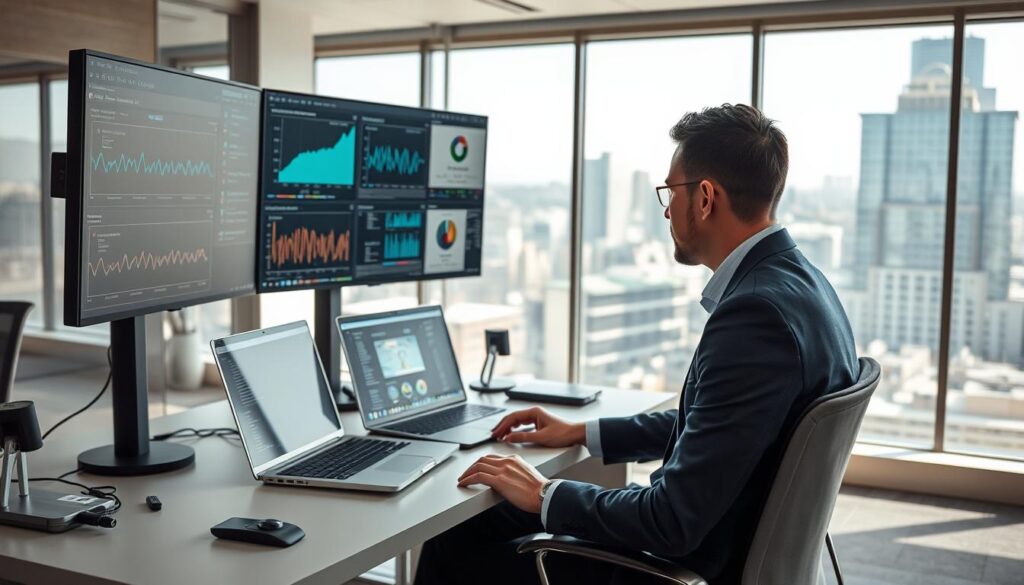
Session monitoring and audit trails: I require logs that show who connected, the exact time, and the device targeted. Good logs include timestamps, actions or commands when possible, and exportable records for reviews. Those records let me answer “who did what” without guesswork.
Baselining behavior with analytics
I use analytics tools to learn normal patterns—typical access times, usual devices, and common actions. When an outlier appears, alerts tell me to investigate before harm happens.
Role-based controls to limit what technicians can do
Role policies restrict technician permissions to the minimum needed. That reduces accidental exposure of data and ties each action to a role and operator.
- Good logs: time-stamped events, device targets, and action details.
- Analytics: baselines that highlight anomalies early.
- RBAC: least privilege so one technician cannot escalate across systems.
I also insist that providers share logs and controls so accountability extends beyond my toolset. Monitoring plus tight roles is the practical path to better security and compliance in day-to-day operations.
Compliance Reality Check for US Teams Handling Sensitive Information
In the US, compliance is not optional when you handle customer information; it must be written down and enforced.
A clear remote access policy is the backbone of compliance and security. It defines who gets access, what they may do, and how long that access lasts. I document roles, least-privilege rules, and approval flows so actions are repeatable and auditable.
How laws shape daily operations
HIPAA, GDPR, and CPRA force practical changes to how I handle data during sessions.
I make sure logs, encryption, and consent records exist so my organization can prove controls if regulators ask.
Assessment rhythm and technical controls
- Regular security assessments and vulnerability testing to catch drift.
- Annual audits and penetration tests to validate controls.
- Encryption, role-based access, and session recording as technical measures.
Training to cut human error
I train users and technicians on what to expect, what never to reveal, and how to stop a session if sensitive information appears.
Policy, monitoring, and training reduce risk more reliably than “being careful” alone, and they help preserve customer trust.
Tools and Solutions I Evaluated to Protect Customers and Boost Customer Satisfaction
Choosing the right solutions meant balancing strong security with a smooth customer experience.
I judged each software package on practical measures: end-to-end encryption, role-based access controls, session recording, and clear admin controls.
What I required from any tool was simple: prove who did what without collecting extra customer data. That reduced risk and improved customer satisfaction during every service interaction.
When unattended access is appropriate
Unattended access earns a place for scheduled maintenance and urgent outages. It is too much for personal devices, high-risk customers, or routine tickets that don’t justify persistent access.
Privileged Access Management and vaulting
PAM changes the equation by adding vaults, just-in-time access, stronger authentication, and granular monitoring. That means fewer shared credentials, shorter exposure windows, and better compliance.
| Feature | Why it matters | Outcome |
|---|---|---|
| Encryption & MFA | Protects data in transit and prevents credential misuse | Stronger security, audit-ready |
| RBAC & Just-in-Time | Limits who can act and when | Less exposure, clearer accountability |
| Session recording & logs | Creates an audit trail for compliance | Fewer disputes, faster reviews |
I tested Fudo Enterprise as an example PAM provider; it showed how vaulting and session monitoring support compliance-driven organizations. In my experience, the right combination of tools, solutions, and policies delivers better service with fewer data compromises.
Conclusion
My move to Linux gave me tools, but policies and discipline turned those tools into reliable practices.
The core lesson: the OS helped me shape safer sessions, yet the real gains came from how I control access, choose tools, and run assistance workflows.
I now treat a short checklist as baseline for any session: encrypted connections, strong authentication, tight roles, clear logging, and a session-end cleanup that removes artifacts and climbs back to least privilege.
That approach puts the customer first. Better controls cut friction, raise trust, and improve service outcomes because people see I respect their information.
To keep operations steady over time I use consistent systems, predictable patching windows, and software choices that favor accountability over convenience.
Final filter: if a tool or process increases access without improving outcomes, I remove it—because minimizing unnecessary exposure is how quality assistance and real protection rise together.
FAQ
What nobody tells you before switching from Windows to Linux?
I found that the learning curve is real but manageable. File paths, package managers, and permission models differ. I also discovered greater visibility into services and update timing, which gave me more control over my data and device behavior.
Why did I switch to Linux to tighten data protection during remote sessions?
I wanted finer control over processes, stronger defaults for access rights, and clearer logs. On Linux I can restrict which tools run, enforce least privilege, and choose distros with predictable security updates. That reduced my exposure during external assistance.
What does remote access really mean for user information and device control?
It means another party can view screens, transfer files, or execute commands. That creates multiple points where credentials, tokens, or sensitive files can appear. I treat every session as a potential data path and plan controls accordingly.
Where did Windows workflows make me feel exposed during help sessions?
Background services, opaque update behavior, and broad default privileges were the biggest issues. Those elements sometimes allowed tools to access more than intended, and logs were harder to parse for accountability.
How did Linux change my control over services, permissions, and updates?
I could disable unnecessary daemons, use strict sudo rules, and pick update cadences that fit my risk tolerance. Package signing and transparent logs made it easier to verify what ran and when.
How do attended sessions differ from unattended access and what risks do each pose?
Attended sessions require user presence and consent, reducing privilege misuse. Unattended access grants ongoing entry, so I lock it behind vaulting, just-in-time elevation, and tight RBAC to limit exposure.
Why does screen viewing still matter even if the technician has no input control?
Viewing can expose passwords, account numbers, or sensitive documents. I obscure or close sensitive windows and use session filters or masking when possible to prevent accidental disclosure.
What common friction points create privacy or security gaps during sessions?
Connectivity interruptions, unclear permission prompts, and user reluctance to follow guidance all increase risk. I standardize tools and scripts to reduce confusion and keep sessions short and well-documented.
How do device differences across Windows, macOS, Linux, iOS, and Android affect handling data?
Each OS has different permission models, logging, and sandboxing. I tailor controls per platform, enforce strong authentication, and avoid platform-agnostic assumptions about file access or encryption.
How did I define my threat model around sensitive information and customer trust?
I identified crown-jewel data, attack vectors, insider risk, and regulatory impacts. That helped me prioritize controls like encryption, access reviews, and session recording only where necessary to maintain trust.
What must-have features did I list for secure sessions like recording, file transfer, and chat?
I required end-to-end encryption, selectable session recording with tamper-evident logs, scoped file transfer controls, authenticated chat, and a clear consent flow. Those features balance troubleshooting with data minimization.
Where does sensitive information typically surface during technical assistance?
Password dialogs, browser autofill, logs, temporary files, and transferred documents are common spots. I scan for artifacts post-session and automate cleanup where possible to limit residual data.
How did I choose a Linux distro based on stability, security, and update cadence?
I prioritized LTS releases from reputable vendors, strong package signing, and predictable patch windows. That gave me a stable base while keeping critical fixes timely.
How did I harden my workstation with least privilege and tighter access rights?
I restricted sudo to specific commands, used separate accounts for admin tasks, and applied SELinux/AppArmor profiles. That reduced lateral movement and limited what any session could change.
Why separate technician tools from everyday browsing?
Mixing tools increases the chance of cross-contamination. I set up isolated profiles or VMs for diagnostics so web browsing or email can’t inadvertently expose credentials or tokens to the toolset.
How did I build a clean patching routine to stay ahead of vulnerabilities?
I staged updates in a test environment, scheduled regular maintenance windows, and kept emergency channels for zero-days. Automation helped me apply patches quickly while minimizing downtime.
What encryption expectations did I set for data in transit and at rest?
I insisted on modern TLS for transit and strong disk encryption for devices and backups. Keys get rotated regularly and access to decrypted material is limited by role-based controls.
Why did I adopt multi-factor authentication versus passwords alone?
Passwords are often compromised. MFA adds a second barrier—time-based codes, hardware keys, or push approval—that significantly reduces account takeover risk during sessions.
How do idle session timeouts help prevent hijacked connections?
Timeouts close unattended sessions quickly, shrinking the window for an attacker to reuse an open connection. I tune them conservatively for security while keeping usability in mind.
Why lock machines automatically at session end?
Locking prevents a technician or bystander from accessing sensitive content after a session. It’s an easy control that stops many accidental exposures.
How does automatic clipboard deletion reduce credential leakage?
Clipboards often carry passwords or tokens. Automatic clearing after transfer prevents those items from lingering and being pasted elsewhere unintentionally.
What does session monitoring and audit trails show me?
They record who connected, when, what commands ran, and files moved. I use these trails for incident analysis and to prove compliance during audits.
How do analytics tools help baseline behavior and detect anomalies?
They learn normal patterns—like typical session times or common actions—and alert me to deviations that may indicate misuse or compromised credentials.
Why is role-based access control important for technician privileges?
RBAC ensures people only get permissions needed for their job. I map roles carefully and use just-in-time elevation so broad privileges aren’t constantly available.
How does a remote access policy support compliance and security?
A clear policy defines acceptable use, consent processes, logging requirements, and escalation paths. It becomes the backbone for training and audits.
How do HIPAA, GDPR, and CPRA shape my operations handling sensitive data?
These frameworks mandate data minimization, breach reporting, and safeguards. I align session practices—consent, encryption, limited access—to meet those legal controls.
Why schedule regular security assessments, vulnerability tests, and audits?
Ongoing testing catches drift and new risks. I run vulnerability scans, penetration tests, and compliance checks to validate controls and improve them over time.
How do training users and technicians reduce human error during sessions?
Training teaches safe behaviors—what to close, when to consent, and how to spot phishing. Regular drills keep muscle memory sharp so people act correctly under pressure.
What did I look for in tools: encryption, RBAC, and session recording?
I prioritized vendors with strong cryptography, granular role controls, immutable audit logs, and transparent consent prompts. Those features directly reduced my operational risk.
When is unattended access justified and when is it too risky?
I allow unattended access only for essential, low-risk maintenance with vaulting and just-in-time elevation. It’s too risky for systems that hold highly sensitive customer data without strict controls.
How do Privileged Access Management tools add vaulting and just-in-time access?
PAM solutions store credentials securely, issue ephemeral access, and record sessions. That removes standing secrets and gives me accountability for privileged actions.