
Over 40% of Windows users say they’d switch to a Linux desktop if it cut setup time by half. That surprised me when I first dug into why people pick one distro over another.
I write from my own perspective on a home computer. I pick distros by one rule: what gets me productive fastest with the least friction.
My zorin experience shaped how I judged polish, wasted minutes, and features that really mattered. I also tested Ubuntu and Linux Mint the same way.
In this intro I’ll set clear expectations. I compare these systems for Windows switchers in the United States who want a stable daily driver, not a hobby project.
Wins for me were smooth setup, sensible defaults, and predictable updates. Losses meant confusing software sources, small UI annoyances, or surprise slowdowns that cost time.
Key Takeaways
- My choice method favors quick setup and low upkeep for family and work use.
- Visual polish matters, but predictable updates win long term.
- App availability and a trustworthy software store shape most decisions.
- Free can cost hours; some people pay for convenience to save time.
- This comparison is practical, not ideological, for daily drivers.
How I evaluate a Linux distro in the real world (not in theory)
I judge distros by how fast a fresh install becomes a reliable daily tool. Setup speed and steady operation matter more than novelty features for a household machine.
What I’m optimizing for: time, familiarity, and daily usability on a home computer
Time is the top metric. If a system forces nights of troubleshooting, that cost outweighs any saved money. I count hours-to-productivity in dollars when deciding what to keep.
Familiarity means predictable menus, sensible window behavior, and minimal UI surprises for a family desktop. New users should find common settings where they expect them.
Who this comparison is for: Windows switchers, families, and productivity-focused users in the US
This is for parents, students, and remote workers who need a system that just works. I weight features that reduce babysitting and keep the household running smoothly.
The hidden cost of “free”: when Linux costs time instead of money
Free can cost hours. A ten-hour reconfiguration spiral can erase weeks of productivity. Sometimes paying to save setup time is the smarter move.
| Metric | Why it matters | How I measure | Acceptable result |
|---|---|---|---|
| Setup time | Stops bouncing back to Windows | Minutes from install to daily apps working | < 90 minutes |
| Familiarity | Reduces learning curve for family users | Ease of finding core settings | Start-menu-like navigation |
| Operating stability | Less downtime over years | Frequency of regressions and update problems | Few or no workflow-breaking updates |
| Hidden cost | Time vs money trade-off | Hours spent troubleshooting | Under 5 hours post-install |
My zorin os experience on Zorin OS 17 and 18: the good, the bad, and the surprisingly polished parts
When I booted the latest releases, the desktop felt like a polished product rather than an experiment. The look is tidy and the menu layout maps well to Windows habits, which helps new users skip the confusion.
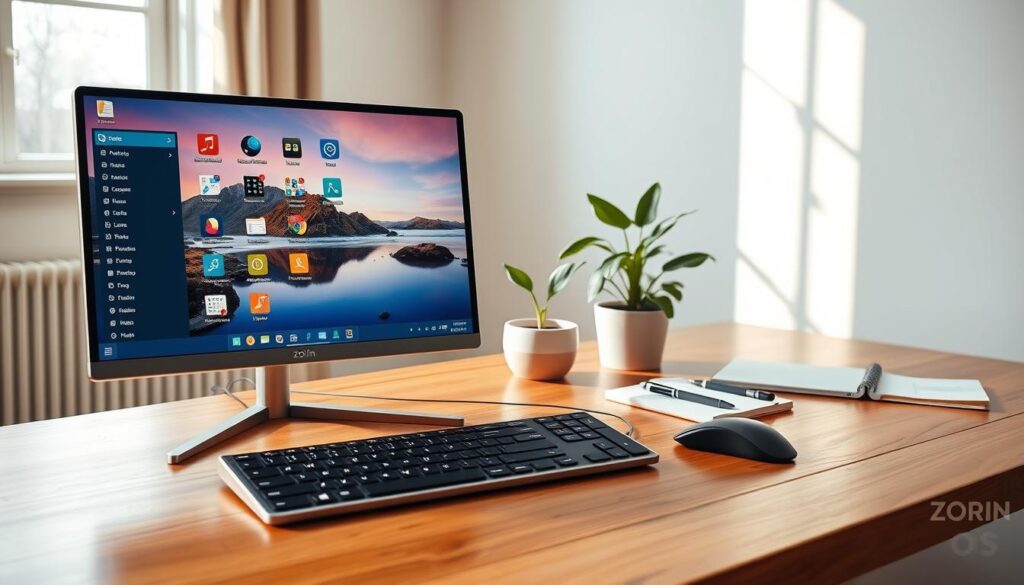
First impression: the slickest GNOME-style desktop layout I’ve used
The desktop felt finished: panel, icons, and sane window controls all in the right place. That one tidy layout cut the learning curve for day-to-day work.
Zorin Appearance in version 18
The Appearance tool is the standout. I could flip between a modern Windows-like look, a macOS-like dock, and a tablet layout instantly. No restart, no extra software needed.
Performance reality check and theme ergonomics
On version 17 I noticed sluggish animations. Turning animations off made the system feel fast and snappy.
The dark theme impressed me with good contrast. Still, window focus and the tray act in an all-or-nothing way that annoyed me.
Default apps and small paper cuts
Brave ships as the default browser and LibreOffice is included. I installed VLC, Steam (Deb), and GIMP right away.
Small things add up: the screenshot tool lacks a timer and smart naming, file copy feedback is weak, and a battery indicator once stuck at 100%—little faults that erode trust.
Installation and setup: where Zorin feels like Ubuntu, and where it doesn’t
A clean install is the first real test of whether a system will calm or confuse new users. I walked the usual home-user path: make a USB, boot the live session, choose “install alongside” for a dual-boot, and reboot to confirm the new system appears alongside Windows.
What the installer gets right: partition info is shown clearly, the installer preselects the EFI partition correctly, and the dual-boot process finished briskly on my machines. That smooth flow is the first trust point for users who fear breaking their computer.
Where setup can surprise you: localization sometimes follows timezone settings instead of the language you picked. Encryption and RAID/LVM options are present but can look intimidating to non-technical users. UI alignment and small cropping issues in the installer made the whole process feel slightly rough around the edges.
| Step | What went well | Risk for new users |
|---|---|---|
| Partitioning | Clear labels, EFI auto-select | Advanced layout needs care |
| Dual-boot | Reboot to both Windows and new system | Boot order tweaks sometimes needed |
| Localization | Timezone set automatically | Language can mismatch timezone |
| Encryption | Offers full-disk options | Options hard to interpret |
Software management and trust: the deciding factor most people ignore until it bites
Software discovery is the moment most users meet the system and decide if it feels trustworthy. That surface interaction matters more than themes or icons. It’s the part you touch every time you add an app, update, or troubleshoot.

Why the “half-store, half-package-manager” approach feels slow and confusing
The GUI store I tested was noticeably slow. Thumbnails took ~20 seconds to appear and the UI mixed package backends without clear signals.
That mix makes the process feel fragmented. New users see duplicate entries and wonder which one to pick.
Deb vs Flatpak vs Snap: how duplicates and unclear verification erode trust
Take Steam as an example: Deb and Flatpak listings can show up side-by-side. FlatHub entries may show no verification badge.
If you can’t tell if a listing is official, verified, or community-uploaded, you’re asking ordinary people to make supply-chain choices.
What I’d change immediately
- Clear source labels—Deb / Flatpak / Snap visible on search results.
- Prominent verification—show vendor or verified badge upfront.
- Filtering controls—allow users to exclude formats they don’t want.
Updates worked reliably in my tests, but discovery needs fixing. Clarity beats cleverness for Windows converts and everyday users.
Zorin OS Pro vs free distros: what you’re actually paying for
For many people, the real question is whether $48 buys back enough time to matter.
Price and the pitch: Pro is a one-time $48 convenience buy. It doesn’t sell the kernel; it sells a ready-made desktop and a curated software bundle so you skip hours of tuning.
The premium layouts and curated suite
Pro adds eight premium layouts to the four in the free version, giving 12 total layout options. That matters if you want a specific default look without fiddling.
The purchase also bundles a curated suite: office and creative apps like an office suite, GIMP, Kdenlive, and OBS Studio. That suite cuts the install checklist down to almost nothing.
Who benefits and why it can be worth the sticker
“Recreating the same polish on a free distro can take 40–50 hours for newcomers.”
- People short on time: pay once, skip the weekend of tweaks.
- Families: one stable desktop for years with fewer decisions.
- Windows migrants: the paywall optics may sting, but the math can favor buying if your time is valuable.
My point: Pro isn’t mandatory. It’s a practical option to buy back time and reduce setup pain for those who want work-ready software and polished defaults out of the box.
Conclusion
My final call favors whatever gets apps working fast and keeps the day-to-day simple. That rule drove my choice more than feature lists or clever defaults.
I found a polished desktop and quick installation helped a lot. The layout switcher made the transition for Windows migrants easier, and the default visuals cut setup time for common tasks.
Weaknesses mattered too: unclear software sourcing in the store and small UI bugs can erode trust over years. If you prize documentation and a mainstream path, pick Ubuntu. If you want a traditional, low-surprise desktop for a shared household, pick Linux Mint.
Practical rule: choose based on how much time you will spend after installation, how much you value desktop polish, and how strict you are about software clarity. In my perspective, the distro you actually keep using is the one that doesn’t fight you in the menu and saves you time on the computer every day.
FAQ
How do I decide between Ubuntu, Linux Mint, and Zorin for a home PC?
I weigh time-to-setup, familiarity, and daily usability. I pick the distro that minimizes friction: clear installer, familiar desktop layout, and apps I need preinstalled. If I want a Windows-like feel without heavy tweaking, I choose the one that matches my layout preference and saves setup time.
What criteria do I use when evaluating a Linux distribution in the real world?
I focus on time saved, how familiar the interface feels, and whether I can be productive the same day. I test installer clarity, default apps, update behavior, and whether common hardware works without tinkering. I also check software management and how quickly I can restore my workflow.
Who benefits most from the comparisons in this guide?
I wrote this for Windows switchers, families looking for a stable home machine, and productivity-focused users in the US who want low-maintenance setups. I aim at people who value a short learning curve and minimal troubleshooting.
Is “free” really free for a desktop Linux system?
Not always. I count time as a cost: learning, troubleshooting, and longer setup all add up. If a distro saves me hours or lets my family use the computer without calls for help, that convenience can be worth paying for.
What stood out when I tested Zorin 17 and 18?
I noticed a slick GNOME-style desktop that felt polished, flexible layout options that mimic Windows and macOS, and useful default apps like Brave and LibreOffice. Performance was good after I disabled some animations, but small UX issues—like screenshot quirks and a flaky battery indicator—were annoying.
How useful are the appearance presets and layout switching?
Very useful. I could toggle between Windows, macOS, and tablet layouts quickly, which saved time when helping others. It cuts down on customization and makes the desktop familiar to new users right away.
Did I have to change settings to make the system feel fast?
Yes. I turned off some animations and adjusted compositor settings. That made window interactions snappier and improved perceived responsiveness on midrange hardware.
What everyday apps come preinstalled and what did I add?
The default suite included Brave and LibreOffice. I installed VLC, Steam, and GIMP immediately. For most people, the included apps cover basics, but I add media and gaming tools depending on use.
What small issues affected daily usability?
I ran into limited screenshot tool options, weak file copy progress feedback, and a battery indicator that didn’t report accurately. Each is minor alone but they accumulate and erode polish during regular use.
How does the installer compare to Ubuntu’s?
The installer felt familiar and clear, with good partition information and a smooth dual-boot flow. It’s essentially Ubuntu-like where it counts, which saves time for anyone used to that process.
Where did setup surprise me?
Localization defaults and disk encryption options were less intuitive than I expected. Some UI elements felt inconsistent, which made a few choices confusing for less technical users.
What’s the software management experience like day-to-day?
It felt split between a graphical store and traditional package tools, which slowed me down. I ran into duplicate app listings and unclear provenance for some packages, so I hesitated before installing critical software.
How do Deb, Flatpak, and Snap affect trust and usability?
Multiple packaging systems create duplicate entries and unclear verification. For example, Steam can appear in different formats, making it hard to know which is best. I prefer clearer source labels and single-source recommendations.
What would I change about the software store immediately?
I’d add explicit source labels, better filtering by package type, and clearer verification badges. That would reduce confusion and speed up safe installs for nontechnical users.
Is Zorin Pro worth the one-time fee?
For me, the Pro edition can be worth it if it saves hours of setup and includes curated layouts and applications I’d otherwise install manually. It’s a convenience purchase more than a necessity for experienced users.
What does Pro add that free distros don’t?
Pro bundles premium layouts and a curated app suite—office tools and creative apps like GIMP, Kdenlive, and OBS—that cut setup time. That package is aimed at people who want a ready-to-go machine out of the box.
Would I recommend Pro to someone moving from Windows 10?
If they value a polished initial setup and less hands-on configuration, yes. For tinkerers or those on a tight budget, the free options still deliver strong value but require more effort.